
Cloud Build Hands-On: Pipelines Without Managing Servers
What you build: a build, test and push pipeline in Cloud Build, in your own Google Cloud account. Every step, command and screenshot explained for beginners.

✍️ Translate this blog into Hindi, Tamil or Telugu
In this lab you build a real pipeline in Cloud Build: it runs your unit tests, builds a container image, runs the image once as a smoke test and pushes it to Artifact Registry with a version tag. Then you break the code on purpose, watch the pipeline stop at the test step, fix it and ship version 2. You finish by deleting everything.
Who it is for: beginners who have heard of CI/CD but never written a pipeline file. Time: about 1 hour. Cost: free tier (Cloud Build gives 2,500 build-minutes a month free on the default machine; this lab used under 2 minutes, and Artifact Registry stores the first 0.5 GB free).
Every command below was run for real by the CareerByteCode Team on a fresh Google Cloud project, and every output and screenshot is the real result we got. We ran the commands from a terminal with the Google Cloud CLI; Cloud Shell in your browser has the same tools, so you can copy and paste each command there.
🧪⭐ Recommended by CareerByteCode · ByteLabs project bundleCloud and DevOps Realtime Starter₹499Build the projects →Part A: Cloud Build in plain English
Cloud Build is a service that runs your build steps on Google's machines. You do not keep a build server running and you do not patch it. You hand Cloud Build your code and a file called cloudbuild.yaml, and it runs the steps one by one.

The words you need:
- Build: one run of the pipeline. It gets an ID and a status: SUCCESS, FAILURE, QUEUED or WORKING.
- Step: one task inside a build. Each step runs in its own container, chosen with
name:(for examplepython:3.12-slimorgcr.io/cloud-builders/docker). Real-life example: stations on a factory line, each with its own tools. - cloudbuild.yaml: the recipe. It lists the steps in order, the image to push and default values.
- Substitution: a variable in the recipe, written
$_VERSION. You change it per build without editing the file. Real-life example: a form with a blank for the date that you fill in each day. - Artifact Registry: Google's store for container images. A repository is one shelf in that store.
- Tag: a label on an image, like
v1orv2, so you can find each version again.
Why teams use it: every change is tested the same way, a failing test stops a broken image from being shipped, and you get a history of who built what and when.
Before you start
- A Google Cloud account (the free trial works) and a project with billing linked.
- Open Cloud Shell (the
>_icon at the top of the Google Cloud console). - Save your project id in a variable (put your own id between the quotes):
export PROJECT_ID="your-project-id"- Run every step from your home folder (
cd ~takes you there). The steps that work on the app start withcd hello-buildthemselves.
Part B: the lab
Step 1: turn on the APIs
Why: an API is the door to a Google Cloud service. Cloud Build and Artifact Registry are off in a new project until you switch them on.
gcloud config set project $PROJECT_ID
gcloud services enable cloudbuild.googleapis.com artifactregistry.googleapis.com
gcloud services list --enabled --filter="name:(cloudbuild.googleapis.com OR artifactregistry.googleapis.com)" --format="value(name)"
Updated property [core/project].
Operation "operations/acat.p2-PROJECT_NUMBER-63467680-23d3-41a4-83e3-94c80d8f7b85" finished successfully.
projects/PROJECT_NUMBER/services/artifactregistry.googleapis.com
projects/PROJECT_NUMBER/services/cloudbuild.googleapis.comStep 2: create a Docker repository
Why: the pipeline needs a place to push the image. us-east1 keeps the repository next to the build.
gcloud artifacts repositories create cbc-images \
  --repository-format=docker --location=us-east1 \
  --description="CareerByteCode Cloud Build lab"
gcloud artifacts repositories list --location=us-east1 --format="table(name.basename(),format,location)"
Create request issued for: [cbc-images]
Waiting for operation [projects/your-project-id/locations/us-east1/operations/8d530526-2cad-48ee-922f-0bfe8893c624] to complete...
..........done.
Created repository [cbc-images].
Listing items under project your-project-id, location us-east1.
REPOSITORY FORMAT LOCATION
cbc-images DOCKER
Step 3: write a tiny app with a unit test
Why: a pipeline needs something to test and package. app.py has one function, test_app.py checks it, and the Dockerfile describes the container.
mkdir -p hello-build && cd hello-build
cat > app.py <<EOF
def greet(name):
    return "Hello, " + name + "!"

if __name__ == "__main__":
    print(greet("CareerByteCode"))
EOF
cat > test_app.py <<EOF
from app import greet

def test_greet():
    assert greet("Cloud Build") == "Hello, Cloud Build!"
EOF
cat > Dockerfile <<EOF
FROM python:3.12-slim
WORKDIR /app
COPY app.py .
CMD ["python", "app.py"]
EOF
ls -1
Dockerfile
app.py
test_app.py
After this step you are inside the hello-build folder. Go back with cd ~ before Step 4.
Step 4: write the pipeline file
Why: this file is the whole pipeline. Read it line by line:
steps:the list of tasks.id:gives each one a short name for the logs.- Step
testruns in apython:3.12-slimcontainer, installs pytest and runs the tests. If one test fails, the build stops here. - Step
builduses the official Docker builder to build the image and tag it with$_VERSION. - Step
smokeruns the new image once. If the app crashes on start, the build fails. images:tells Cloud Build to push this image to Artifact Registry when every step passed.$PROJECT_IDis filled in by Cloud Build itself._VERSION: v1is the default value of our own substitution.logging: CLOUD_LOGGING_ONLYsends the build logs to Cloud Logging (no extra log bucket needed).
The backslashes before $ in the command stop your shell from filling the values in, so Cloud Build receives them as written.
cd hello-build
cat > cloudbuild.yaml <<EOF
steps:
  # Step 1: run the unit tests inside a Python container
  - id: test
    name: python:3.12-slim
    entrypoint: bash
    args: ["-c", "pip install --quiet pytest && pytest -q"]
  # Step 2: build the container image
  - id: build
    name: gcr.io/cloud-builders/docker
    args: ["build", "-t", "us-east1-docker.pkg.dev/\$PROJECT_ID/cbc-images/hello-build:\$_VERSION", "."]
  # Step 3: run the new image once as a smoke test
  - id: smoke
    name: gcr.io/cloud-builders/docker
    args: ["run", "--rm", "us-east1-docker.pkg.dev/\$PROJECT_ID/cbc-images/hello-build:\$_VERSION"]
images:
  - us-east1-docker.pkg.dev/\$PROJECT_ID/cbc-images/hello-build:\$_VERSION
substitutions:
  _VERSION: v1
options:
  logging: CLOUD_LOGGING_ONLY
EOF
cat cloudbuild.yaml
steps:
# Step 1: run the unit tests inside a Python container
- id: test
name: python:3.12-slim
entrypoint: bash
args: ["-c", "pip install --quiet pytest && pytest -q"]
# Step 2: build the container image
- id: build
name: gcr.io/cloud-builders/docker
args: ["build", "-t", "us-east1-docker.pkg.dev/$PROJECT_ID/cbc-images/hello-build:$_VERSION", "."]
# Step 3: run the new image once as a smoke test
- id: smoke
name: gcr.io/cloud-builders/docker
args: ["run", "--rm", "us-east1-docker.pkg.dev/$PROJECT_ID/cbc-images/hello-build:$_VERSION"]
images:
- us-east1-docker.pkg.dev/$PROJECT_ID/cbc-images/hello-build:$_VERSION
substitutions:
_VERSION: v1
options:
logging: CLOUD_LOGGING_ONLY
Step 5: run the pipeline
Why: gcloud builds submit packs the folder, uploads it and starts a build with your recipe. It waits until the build ends.
cd hello-build
gcloud builds submit --region=us-east1 --config=cloudbuild.yaml . 2>&1 | tail -25
Creating temporary archive of 4 file(s) totalling 1017 bytes before compression.
Uploading tarball of [.] to [gs://your-project-id_cloudbuild/source/1794952564.302656-ed6ad0ced253425ba00436f8943b8648.tgz]
Created [https://cloudbuild.googleapis.com/v1/projects/your-project-id/locations/us-east1/builds/aa723e55-92c9-4616-a248-79b0975012b7].
Logs are available at [ https://console.cloud.google.com/cloud-build/builds;region=us-east1/aa723e55-92c9-4616-a248-79b0975012b7?project=PROJECT_NUMBER ].
gcloud builds submit only displays logs from Cloud Storage. To view logs from Cloud Logging, run:
gcloud beta builds submit
Waiting for build to complete. Polling interval: 1 second(s).
ID CREATE_TIME DURATION SOURCE IMAGES STATUS
aa723e55-92c9-4616-a248-79b0975012b7 2026-11-17T21:56:07+00:00 25S gs://your-project-id_cloudbuild/source/1794952564.302656-ed6ad0ced253425ba00436f8943b8648.tgz us-east1-docker.pkg.dev/your-project-id/cbc-images/hello-build:v1 SUCCESS
Step 6: see each step and read the test log
Why: when a build is slow or fails, you want to know which step. gcloud builds describe lists the steps with their status and times, and the build log lives in Cloud Logging.
BUILD_ID=$(gcloud builds list --region=us-east1 --limit=1 --format="value(id)")
gcloud builds describe $BUILD_ID --region=us-east1 --format="table[box](steps.id,steps.status,steps.timing.startTime.date(%H:%M:%S),steps.timing.endTime.date(%H:%M:%S))" --flatten=steps
+-------+---------+------------+----------+
| ID | STATUS | START_TIME | END_TIME |
+-------+---------+------------+----------+
| test | SUCCESS | 21:56:11 | 21:56:21 |
| build | SUCCESS | 21:56:21 | 21:56:23 |
| smoke | SUCCESS | 21:56:23 | 21:56:24 |
+-------+---------+------------+----------+BUILD_ID=$(gcloud builds list --region=us-east1 --filter="substitutions._VERSION=v1" --limit=1 --format="value(id)")
gcloud logging read "resource.type=build AND resource.labels.build_id=$BUILD_ID AND textPayload:passed" \
--order=asc --format="value(textPayload)" --limit=5Step #0 - "test": 1 passed in 0.01s
Step 7: the image is in Artifact Registry
gcloud artifacts docker images list us-east1-docker.pkg.dev/$PROJECT_ID/cbc-images --include-tags --format="table(package.basename(),tags,createTime.date(%Y-%m-%d %H:%M))"Listing items under project your-project-id, location us-east1, repository cbc-images.
IMAGE TAGS CREATE_TIME
hello-build v1 2026-11-17 21:56
Break it and fix it
🎓⭐ Recommended by CareerByteCode · Live trainingCloud & DevOps Live Cohort Internship₹2,360See the training →This is the moment CI exists for. A teammate changes the greeting from "Hello" to "Hi" but forgets the test. We change the code, keep the test, and build version v2:
cd hello-build
sed -i "s/Hello, /Hi, /" app.py
cat app.py
gcloud builds submit --region=us-east1 --config=cloudbuild.yaml --substitutions=_VERSION=v2 . 2>&1 | tail -6
def greet(name):
return "Hi, " + name + "!"
if __name__ == "__main__":
print(greet("CareerByteCode"))
gcloud beta builds submit
Waiting for build to complete. Polling interval: 1 second(s).
BUILD FAILURE: Build step failure: build step 0 "python:3.12-slim" failed: step exited with non-zero status: 1
ERROR: (gcloud.builds.submit) build 35cec27c-4711-453e-8aea-533c0860a2e0 completed with status "FAILURE"The build fails, and that is good news: the broken code never became an image. Ask which step failed and why:
BUILD_ID=$(gcloud builds list --region=us-east1 --limit=1 --format="value(id)")
gcloud builds describe $BUILD_ID --region=us-east1 --format="table[box](steps.id,steps.status)" --flatten=steps
gcloud logging read "resource.type=build AND resource.labels.build_id=$BUILD_ID AND severity>=DEFAULT AND textPayload:assert" --order=asc --format="value(textPayload)" --limit=10
+-------+---------+
| ID | STATUS |
+-------+---------+
| test | FAILURE |
| build | QUEUED |
| smoke | QUEUED |
+-------+---------+
Step #0 - "test": > assert greet("Cloud Build") == "Hello, Cloud Build!"
Step #0 - "test": E AssertionError: assert 'Hi, Cloud Build!' == 'Hello, Cloud Build!'
Step #0 - "test": test_app.py:4: AssertionError
Step #0 - "test": FAILED test_app.py::test_greet - AssertionError: assert 'Hi, Cloud Build!' ==...
build and smoke stayed QUEUED: they never ran. pytest shows the exact line: it expected Hello, Cloud Build! and got Hi, Cloud Build!. Fix: put the greeting back (or change the test if the new greeting is wanted) and build v2 again:
cd hello-build
sed -i "s/Hi, /Hello, /" app.py
gcloud builds submit --region=us-east1 --config=cloudbuild.yaml --substitutions=_VERSION=v2 . 2>&1 | tail -3
Waiting for build to complete. Polling interval: 1 second(s).
ID CREATE_TIME DURATION SOURCE IMAGES STATUS
babcd22c-291a-449e-add6-e93fd2f9c980 2026-11-17T21:58:50+00:00 25S gs://your-project-id_cloudbuild/source/1794952728.940805-d8563e8628254fa58a12c70a9c0b97b2.tgz us-east1-docker.pkg.dev/your-project-id/cbc-images/hello-build:v2 SUCCESSPOC: prove both versions are stored and the history is kept
gcloud artifacts docker images list us-east1-docker.pkg.dev/$PROJECT_ID/cbc-images --include-tags --format="table(package.basename(),tags,createTime.date(%Y-%m-%d %H:%M))"
gcloud builds list --region=us-east1 --limit=5 --format="table(id,status,substitutions._VERSION)"
Listing items under project your-project-id, location us-east1, repository cbc-images.
IMAGE TAGS CREATE_TIME
hello-build v1 2026-11-17 21:56
hello-build v2 2026-11-17 21:59
ID STATUS _VERSION
babcd22c-291a-449e-add6-e93fd2f9c980 SUCCESS v2
35cec27c-4711-453e-8aea-533c0860a2e0 FAILURE v2
aa723e55-92c9-4616-a248-79b0975012b7 SUCCESS v1
Proof: the registry holds v1 and v2, and the build history shows exactly what happened: v1 SUCCESS, v2 FAILURE (the broken test), v2 SUCCESS (the fix). In the console, Cloud Build > History shows the same three builds with a red mark on the failed one:

Clean up (delete everything)
Why: stored images count against the free 0.5 GB, and gcloud builds submit keeps a copy of your source in a bucket named <your-project-id>_cloudbuild. Delete both.
gcloud artifacts repositories delete cbc-images --location=us-east1 --quiet
gcloud storage rm --recursive gs://${PROJECT_ID}_cloudbuild --quiet 2>&1 | tail -1
echo "repositories left: $(gcloud artifacts repositories list --location=us-east1 --format="value(name)" | wc -l)"
echo "buckets left: $(gcloud storage buckets list --format="value(name)" | wc -l)"
Delete request issued for: [cbc-images]
Waiting for operation [projects/your-project-id/locations/us-east1/operations/790be54b-d640-4147-a8fe-22b2e9e65e43] to complete...
........done.
Deleted repository [cbc-images].
..........
Listing items under project your-project-id, location us-east1.
repositories left: 0
buckets left: 0
repositories left: 0 and buckets left: 0 are your proof. The build history itself costs nothing and stays for your records.
FAQ
Do I need Docker on my computer? No. The docker steps run inside Cloud Build. You only need the gcloud CLI (Cloud Shell has it).
Is a build really free? Each month the first 2,500 build-minutes on the default machine type are free. Our three builds took about 75 seconds in total.
What is the difference between Cloud Build and GitHub Actions? Both run pipelines. Cloud Build runs inside your Google Cloud project, uses your project permissions and stores images next to where you deploy them.
How do I start a build on every git push? Create a trigger (Cloud Build > Triggers > Create trigger) and connect your GitHub repository. The same cloudbuild.yaml runs on every push. Our CI/CD post shows the full flow.
Why did build and smoke say QUEUED, not FAILURE? Steps run in order. When test failed, Cloud Build stopped and never started the next steps.
Can a step use any container? Yes. name: can be any public image or one from your own Artifact Registry.
Where are the logs kept? With CLOUD_LOGGING_ONLY they are in Cloud Logging, under the resource type build.
Troubleshooting
| You see | Why | Fix |
|---|---|---|
API [cloudbuild.googleapis.com] not enabled | The API is off | Run Step 1 |
Repository "cbc-images" not found | Wrong region or the repository was deleted | Run Step 2 again, keep us-east1 everywhere |
| Permission denied when the image is pushed | The build service account cannot push | Give it the Artifact Registry Writer role on the repository |
The image name has an empty project (us-east1-docker.pkg.dev//cbc-images/...) | Your shell replaced $PROJECT_ID while writing the file | Keep the backslash: \$PROJECT_ID in the heredoc |
| Build stays QUEUED for minutes | The region is busy or the quota is low | Wait, or try another region for both the build and the repository |
FAILED test_app.py::test_greet | Your code changed but the test did not | Fix the code or update the test, then build again |
What next
- Next in this series on ByteBlog: "CI/CD for Beginners: Build and Deploy on Every Git Push", the same pipeline deploying to Cloud Run.
- Our tested Kubernetes lab: Zero to Kubernetes in 2.5 hours.
- More hands-on posts on ByteBlog, guided projects in ByteLabs and the full courses.
Prepared by the CareerByteCode Team from our tested lab, with AI help for the write-up.
⭐ Keep learning with CareerByteCode
Hand-picked to go deeper on this topicGet CareerByteCode Team's next blog by email
One email a week when they publish. Add the weekly Best of ByteBlog too. No spam, unsubscribe with one click.
We email you once to confirm. By subscribing you agree to the privacy policy.
Related blogs
 CareerByteCode Team
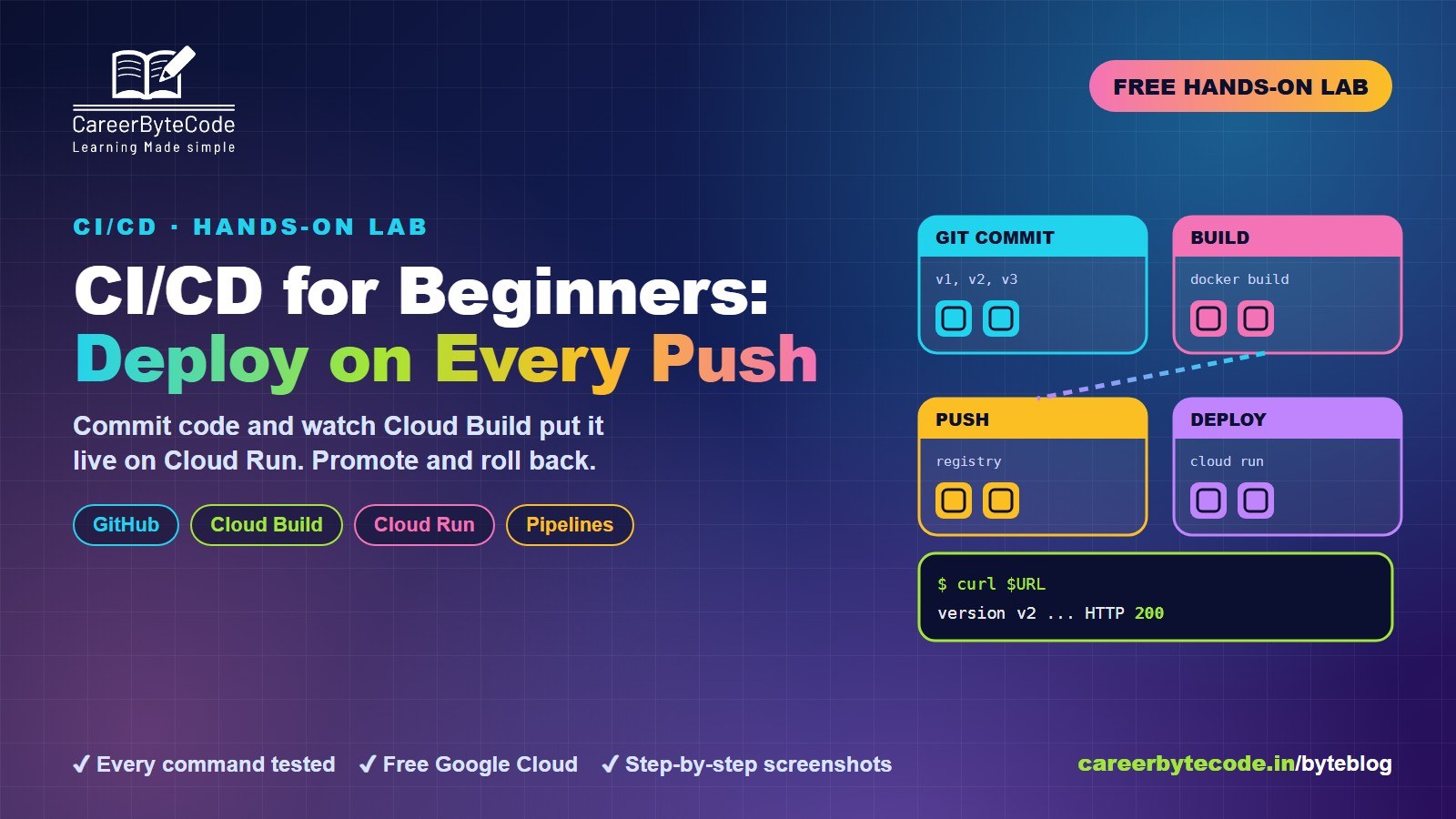
CI/CD for Beginners: Build and Deploy on Every Git Push
What you build: a pipeline from a git commit to a live Cloud Run app, with a test address, one-command promote and rollback, in your own Google Cloud account. Every step tested.
#beginners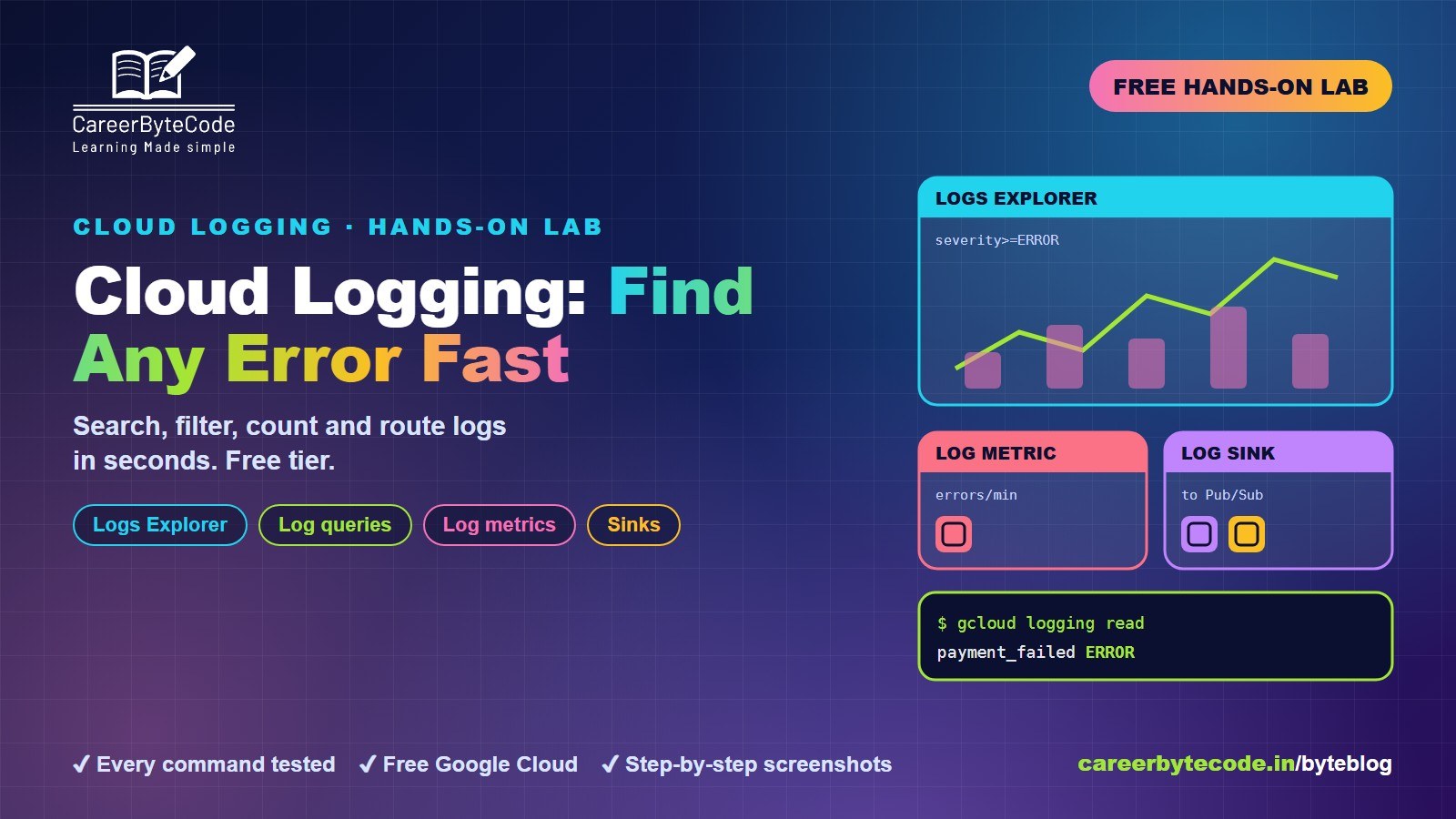 CareerByteCode Team
Cloud Logging Hands-On: Find Any Error in Seconds
What you build: log queries, log-based metrics and sinks, in your own Google Cloud account. Every step, command and screenshot explained for beginners.
#beginners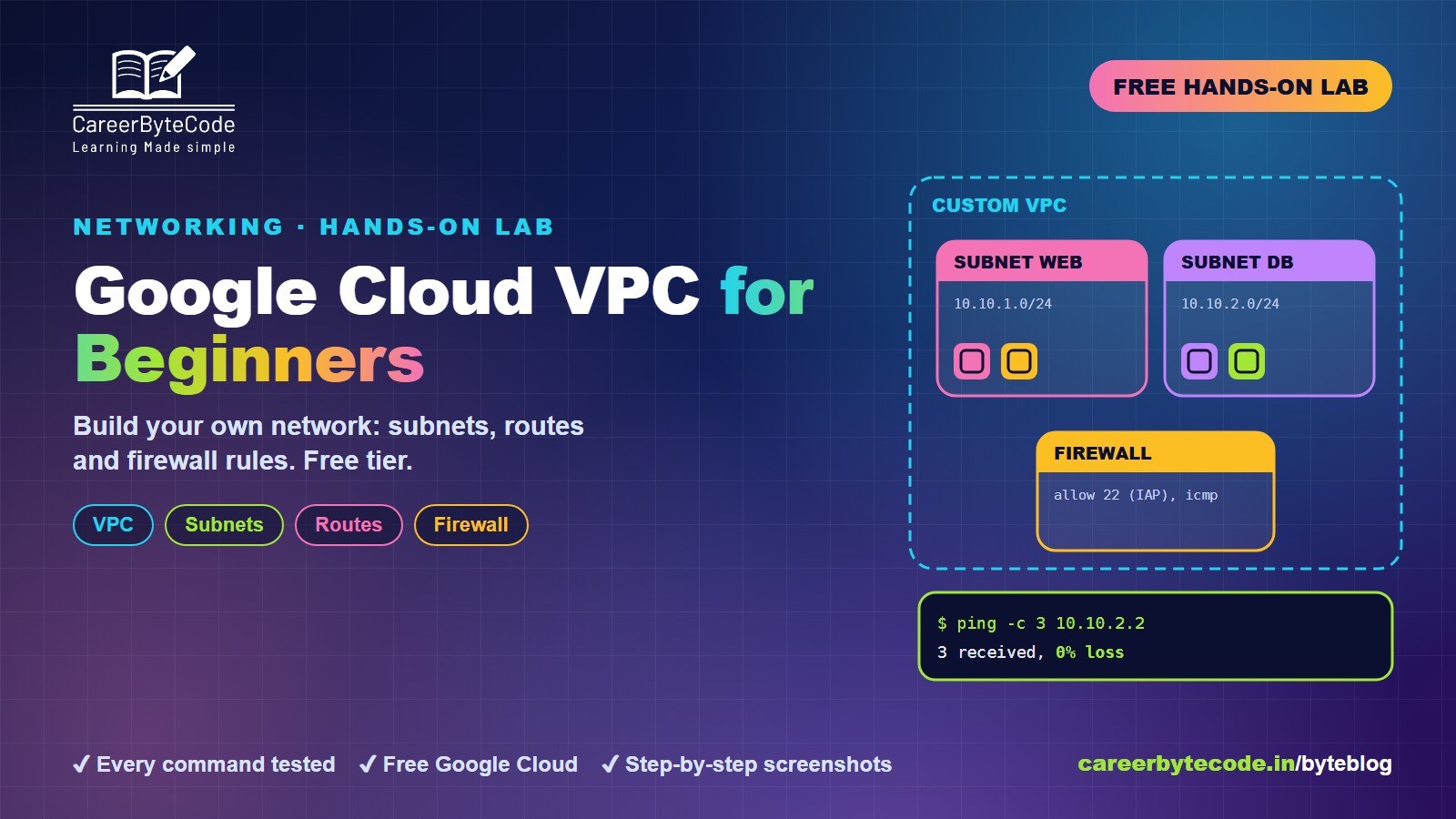 CareerByteCode Team
Google Cloud VPC for Beginners: Subnets, Routes and Firewalls
What you build: a custom VPC with two subnets and firewall rules, in your own Google Cloud account. Every step, command and screenshot explained for beginners.
#beginners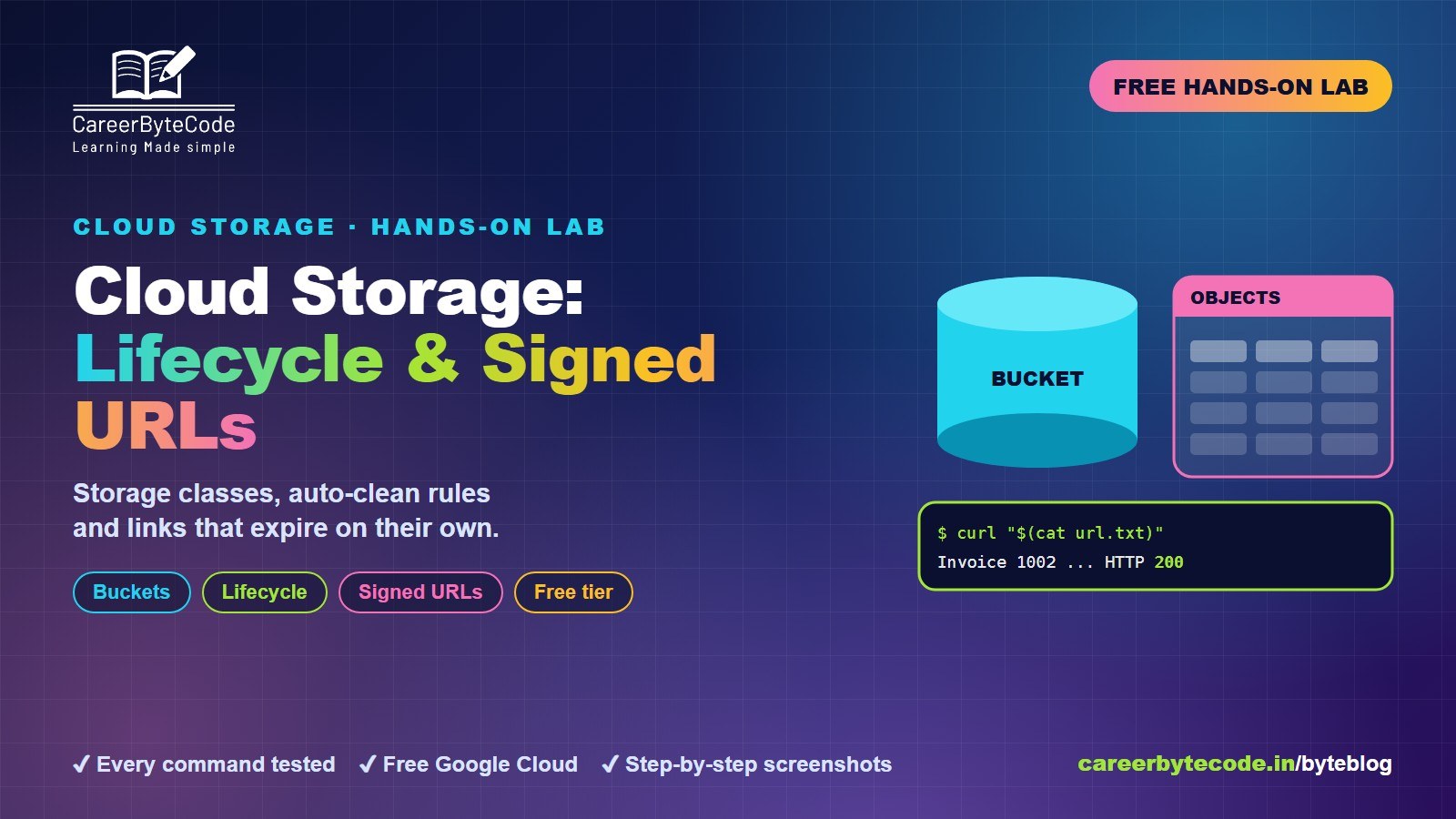 CareerByteCode Team
Cloud Storage Deep Dive: Classes, Lifecycle and Signed URLs
What you build: a private bucket with storage classes, a lifecycle policy, object versions and expiring signed URLs, in your own Google Cloud account. Every step tested.
💬 Comments (0)
Top · NewestSign in to comment