
Google Cloud for Absolute Beginners: Projects, Billing and Console
What you build: a new Google Cloud project, linked to billing, with a budget alert and a free e2-micro virtual machine, all deleted at the end. Every step tested.

✍️ Translate this blog into Hindi, Tamil or Telugu
This is the first lab to do on Google Cloud. You learn the four things every other lab assumes you know (account, project, billing account, budget), then you create a brand-new project, link it to billing, put a budget alert on it, start a free virtual machine, log in to it, and finally delete everything, including the project itself.
Who it is for: absolute beginners. You have never used Google Cloud, or you clicked around once and felt lost. Time: about 1 hour. Cost: free tier (one e2-micro VM in us-east1, us-west1 or us-central1 with a 30 GB standard disk is free every month; we run ours for about 5 minutes).
Every command below was run for real by the CareerByteCode Team, and every output and screenshot is the real result we got. Two things did not work the first time; both are in the lab. We used the Google Cloud CLI (gcloud) in a terminal; Cloud Shell in your browser has the same tool ready, so you can copy and paste each command there.
Part A: Google Cloud in plain English

Seven words you will use in this lab:
- Google account: the email you sign in with. Real-life example: your name on the door bell.
- Project: a box that holds everything you create: VMs, disks, databases. It has a project id (unique in the whole world, you choose it), a project name (just a label) and a project number (Google gives it). Delete the project and everything inside goes with it. Real-life example: one room in a house.
- Billing account: how Google gets paid (a card or bank account). One billing account can pay for many projects. A project without billing can only use free services.
- Budget: a limit you set on a billing account or a project, with email alerts at the percents you pick. Important: a budget does not stop spending; it only warns you.
- API: a Google Cloud service you switch on in a project (Compute Engine, BigQuery, ...). New projects have most of them off, so you pay only for what you turn on.
- Region and zone: a region is a city-sized area with data centres (us-east1 is South Carolina, USA); a zone is one data centre group in it (us-east1-b). Your VM lives in one zone.
- VM (virtual machine): a computer in Google's data centre that you rent by the second. e2-micro is the smallest size, with 2 shared virtual CPUs and 1 GB of memory, and it is free in three US regions.
Cloud Shell is a small free Linux computer in your browser, already signed in with your account. Open it with the >_ icon at the top right of https://console.cloud.google.com. Everything below works in it.
Before you start
- Sign up at https://cloud.google.com/free with a Google account. New accounts get free trial credit, and you add a card for identity (you are not charged during the trial unless you upgrade).
- Open Cloud Shell.
- Choose a project id for this lab. It must be 6 to 30 characters: lowercase letters, digits and dashes, starting with a letter. Add a few random digits so nobody else has it:
export NEW_PROJECT="my-first-project-48213"Part B: the lab
Step 1: who am I and what is set?
Why: before you create anything, check which account the CLI uses and which region it will pick by default. In Cloud Shell the account is the one you are signed in with.
gcloud --version | head -1
gcloud auth list --format="table(account, status)"
gcloud config list --format="text(core.account, compute.region, compute.zone)"
Google Cloud SDK 593.0.0
Updates are available for some Google Cloud CLI components. To install them,
please run:
$ gcloud components update
ACCOUNT ACTIVE
you@example.com *
region: us-east1
zone: us-east1-b
account: you@example.com
The account is blurred in our screenshot. If region and zone are empty for you, set them once with gcloud config set compute/region us-east1 and gcloud config set compute/zone us-east1-b.
Step 2: create a new project
Why: a fresh project keeps this lab separate from anything else you do, and makes clean-up one command.
gcloud projects create $NEW_PROJECT --name="My first project"
gcloud projects describe $NEW_PROJECT --format="yaml(projectId, name, lifecycleState)"
Create in progress for [https://cloudresourcemanager.googleapis.com/v1/projects/my-first-project-id].
Waiting for [operations/create_project.global.7335594182087899724] to finish...
.done.
Enabling service [cloudapis.googleapis.com] on project [my-first-project-id]...
Operation "operations/acat.p2-PROJECT_NUMBER-b7817e17-7873-4279-bd05-4a922f4fa000" finished successfully.
lifecycleState: ACTIVE
name: My first project
projectId: my-first-project-idlifecycleState: ACTIVE means the project is ready. The operations/... line is Google turning on a basic API for you.
Step 3: find your billing account and link it
Why: without billing, a project cannot run a VM, even a free one. We list the billing accounts you can use (the id is hidden), keep the first open one in a variable, link it, and make the new project the default for the next commands.
gcloud billing accounts list --format="table(displayName, open, currencyCode)"
export BILLING_ACCOUNT=$(gcloud billing accounts list --filter=open=true --format="value(name)" --limit=1)
gcloud billing projects link $NEW_PROJECT --billing-account=$BILLING_ACCOUNT --format="value(billingEnabled)"
gcloud config set project $NEW_PROJECT
NAME OPEN CURRENCY_CODE
My Billing Account True INR
True
Updated property [core/project].
True means billing is on for the project. In the console you can see the same at Billing > Account management.
Step 4: a budget with alerts at 50, 90 and 100 percent
Why: this is the single most important habit on any cloud. We set a small budget on this project only (the --budget-amount value uses the currency of your billing account; ours is INR), with email alerts at 50, 90 and 100 percent. The billing account's admins get the emails.
The until ... do sleep 15; done loop tries again every 15 seconds. We need it: on a project that is only a minute old, the first try failed for us with USER_PROJECT_DENIED ("Caller does not have required permission to use project") because the new project's permissions had not reached the budget service yet. The loop waited and then it worked.
export BILLING_ACCOUNT=$(gcloud billing accounts list --filter=open=true --format="value(name)" --limit=1)
gcloud services enable billingbudgets.googleapis.com
until gcloud billing budgets create --billing-account=$BILLING_ACCOUNT --billing-project=$NEW_PROJECT \
  --display-name="My first project budget" --budget-amount=500INR \
  --filter-projects=projects/$(gcloud projects describe $NEW_PROJECT --format="value(projectNumber)") \
  --threshold-rule=percent=0.5 --threshold-rule=percent=0.9 --threshold-rule=percent=1.0 \
  --format="value(name.basename())" > budget-id.txt 2> /dev/null; do sleep 15; done
echo "budget created"
gcloud billing budgets list --billing-account=$BILLING_ACCOUNT --billing-project=$NEW_PROJECT \
  --filter="displayName:\"My first project budget\"" \
  --format="yaml(displayName, amount.specifiedAmount, thresholdRules)"
Operation "operations/acat.p2-PROJECT_NUMBER-28e3b85d-2d1b-42e4-8a31-baf3a037e54c" finished successfully.
budget created
---
amount:
specifiedAmount:
currencyCode: INR
units: '500'
displayName: My first project budget
thresholdRules:
- spendBasis: CURRENT_SPEND
thresholdPercent: 0.5
- spendBasis: CURRENT_SPEND
thresholdPercent: 0.9
- spendBasis: CURRENT_SPEND
thresholdPercent: 1.0
Remember: a budget warns, it does not stop anything. If you want spending to stop automatically, Google documents a way to disable billing from a budget alert with a Cloud Function; for learning, the alert plus deleting things after each lab is enough.
Step 5: turn on Compute Engine
Why: VMs come from the Compute Engine API, which is off in a new project. We also turn on IAP (Identity-Aware Proxy), which lets you SSH into a VM that has no public IP address. This takes about a minute.
gcloud services enable compute.googleapis.com iap.googleapis.com
gcloud services list --enabled --filter="name:(compute.googleapis.com OR iap.googleapis.com)" --format="value(name)"
Break it and fix it
Beginners often guess a zone name. us-east1-a sounds right, but it does not exist:
gcloud compute instances create my-first-vm --zone=us-east1-a --machine-type=e2-micro \
  --image-family=debian-12 --image-project=debian-cloud --no-address
ERROR: (gcloud.compute.instances.create) Could not fetch resource:
- Permission denied on 'locations/us-east1-a' (or it may not exist).The message says "Permission denied ... (or it may not exist)": Google uses the same answer for both, so always check the name first. Fix: list the real zones of the region.
gcloud compute zones list --filter="region:us-east1" --format="table(name, status)"NAME STATUS
us-east1-b UP
us-east1-c UP
us-east1-d UP
Step 6: create a free e2-micro VM
Why: now with a real zone. Each flag, in plain words:
--machine-type=e2-micro: the free size.--image-family=debian-12 --image-project=debian-cloud: start from the latest Debian 12 Linux.--boot-disk-size=10GB --boot-disk-type=pd-standard: a small standard disk, inside the free 30 GB.--no-address: no public IP address. Your VM cannot be reached from the internet, and you do not pay for a public IP.
The second command adds a firewall rule that allows SSH only from Google's IAP range 35.235.240.0/20, so only signed-in people with permission can log in.
gcloud compute instances create my-first-vm --zone=us-east1-b --machine-type=e2-micro \
  --image-family=debian-12 --image-project=debian-cloud --boot-disk-size=10GB --boot-disk-type=pd-standard --no-address
gcloud compute firewall-rules create allow-ssh-from-iap --network=default --direction=INGRESS \
--allow=tcp:22 --source-ranges=35.235.240.0/20 --format="value(name)"WARNING: You have selected a disk size of under [200GB]. This may result in poor I/O performance. For more information, see: https://developers.google.com/compute/docs/disks#performance.
Created [https://www.googleapis.com/compute/v1/projects/my-first-project-id/zones/us-east1-b/instances/my-first-vm].
NAME ZONE MACHINE_TYPE PREEMPTIBLE INTERNAL_IP EXTERNAL_IP STATUS
my-first-vm us-east1-b e2-micro 10.142.0.2 RUNNING
Creating firewall...
..Created [https://www.googleapis.com/compute/v1/projects/my-first-project-id/global/firewalls/allow-ssh-from-iap].
done.
allow-ssh-from-iap
The warning about disks under 200 GB is about disk speed for big workloads; you can ignore it for learning.
POC: log in to your first VM
Why: prove the VM is real. gcloud compute ssh creates an SSH key for you, sends it to the VM, and connects through IAP. --command runs a few commands and comes back. In Cloud Shell, answer Y if it asks to create a key.
gcloud compute ssh my-first-vm --zone=us-east1-b --tunnel-through-iap \
  --command="hostname; uname -sr; nproc; free -h | head -2; df -h / | tail -1; uptime"
(PuTTY host-key notice on our Windows PC left out; Cloud Shell does not show it)
my-first-vm
Linux 6.1.0-56-cloud-amd64
2
total used free shared buff/cache available
Mem: 969Mi 343Mi 454Mi 480Ki 306Mi 626Mi
/dev/sda1 9.7G 2.1G 7.1G 23% /
06:53:57 up 0 min, 0 user, load average: 1.28, 0.33, 0.11
Proof: the VM answered with its name my-first-vm, a Linux kernel, 2 virtual CPUs, 969 MB of memory and a 9.7 GB disk with 7.1 GB free. On our Windows PC gcloud also printed a PuTTY host-key notice; we left those lines out of the output box. Cloud Shell does not show it.
Step 7: what is running in my project?
Why: get used to checking. These two lists are what you look at before you close the laptop.
gcloud compute instances list --format="table(name, zone.basename(), machineType.basename(), status)"
gcloud compute disks list --format="table(name, sizeGb, type.basename())"
NAME ZONE MACHINE_TYPE STATUS
my-first-vm us-east1-b e2-micro RUNNING
NAME SIZE_GB TYPE
my-first-vm 10 pd-standard
Clean up (delete everything)
Why: delete in this order: the VM (its disk goes with it), the firewall rule, the budget, then the whole project. gcloud projects delete shuts the project down: everything in it stops at once, and Google removes it for good after 30 days. Until then you can undo it with gcloud projects undelete.
export BILLING_ACCOUNT=$(gcloud billing accounts list --filter=open=true --format="value(name)" --limit=1)
gcloud compute instances delete my-first-vm --zone=us-east1-b --quiet 2>&1 | tail -1
gcloud compute firewall-rules delete allow-ssh-from-iap --quiet 2>&1 | tail -1
gcloud billing budgets delete $(cat budget-id.txt) --billing-account=$BILLING_ACCOUNT --billing-project=$NEW_PROJECT --quiet && echo "budget deleted"
echo "VMs left: $(gcloud compute instances list --format="value(name)" | wc -l)"
gcloud projects delete $NEW_PROJECT --quiet 2>&1 | head -1
gcloud projects describe $NEW_PROJECT --format="value(lifecycleState)"
Deleted [https://www.googleapis.com/compute/v1/projects/my-first-project-id/zones/us-east1-b/instances/my-first-vm].
Deleted [https://www.googleapis.com/compute/v1/projects/my-first-project-id/global/firewalls/allow-ssh-from-iap].
Deleted budget [0fcf6205-ddd2-47b8-90ab-12b56dc50869].
budget deleted
VMs left: 0
Deleted [https://cloudresourcemanager.googleapis.com/v1/projects/my-first-project-id].
DELETE_REQUESTED
VMs left: 0, budget deleted and DELETE_REQUESTED are your proof. A project in DELETE_REQUESTED state costs nothing.
FAQ
Is the free tier the same as the free trial? No. The free trial is credit for new accounts that expires. The free tier (always free) is a set of small monthly limits, like one e2-micro VM in three US regions, that stays after the trial.
Will I be charged if I forget the VM? One e2-micro in us-east1, us-west1 or us-central1 is inside the always-free limit. Anything bigger, or a second VM, is charged by the second. That is why every CareerByteCode lab ends with clean-up.
What is the difference between project id, name and number? The id is yours, unique and permanent (you type it in commands). The name is a label you can change. The number is Google's internal id. Treat the id and number as private, like an account number.
Does a budget stop my spending? No. It only sends alerts. Delete what you do not need, and check the Billing > Reports page now and then.
How many projects can I create? A small number by default (often around 10 to 30 for new accounts). Deleted projects count until Google removes them after 30 days.
Do I need the console at all? The console (the website) is great for seeing things; the CLI is best for repeating them. Every command in this lab has a matching console page: IAM & Admin > Manage resources (projects), Billing > Budgets & alerts, Compute Engine > VM instances.
Why no public IP on the VM? Fewer open doors. With IAP you can still SSH in, and you save the small hourly cost of a public IPv4 address.
Troubleshooting
| You see | Why | Fix |
|---|---|---|
The project ID you specified is already in use | Project ids are unique worldwide | Add more random digits to NEW_PROJECT |
USER_PROJECT_DENIED when creating the budget | The new project's permissions have not spread yet | Wait a minute and try again (the until loop does this) |
Billing account for project ... is not found or VM creation asks for billing | Billing is not linked | Run Step 3 again; check Billing > Account management |
Permission denied on 'locations/us-east1-a' (or it may not exist) | Wrong zone name | gcloud compute zones list --filter="region:us-east1" |
Compute Engine API has not been used in project | The API is off | Step 5: gcloud services enable compute.googleapis.com |
SSH hangs or says failed to connect to backend | No firewall rule for IAP | Create the allow-ssh-from-iap rule from Step 6 |
Quota 'PROJECTS' exceeded | Too many projects, including ones waiting to be removed | Use an existing project, or ask Google for more |
What next
- Your next tested lab: Monitor Linux Servers with Node Exporter and Ops Agent.
- Go deeper with containers: Zero to Kubernetes in 2.5 hours.
- More hands-on posts from the community: ByteBlog, guided projects in ByteLabs and the full courses.
Prepared by the CareerByteCode Team from our tested lab, with AI help for the write-up.
⭐ Keep learning with CareerByteCode
Hand-picked to go deeper on this topicGet CareerByteCode Team's next blog by email
One email a week when they publish. Add the weekly Best of ByteBlog too. No spam, unsubscribe with one click.
We email you once to confirm. By subscribing you agree to the privacy policy.
More from CareerByteCode Team
 CareerByteCode Team
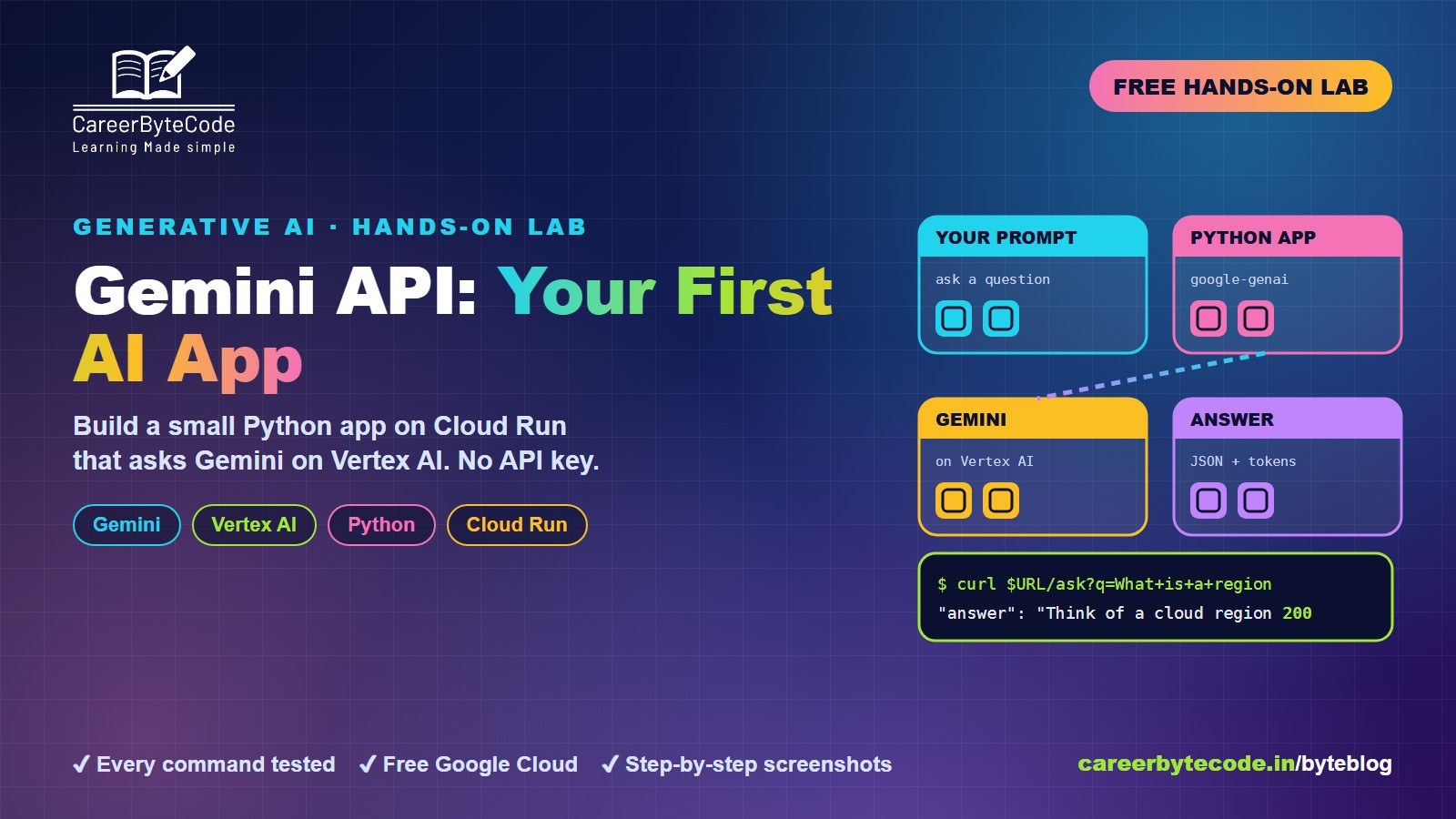
Gemini API for Beginners: Your First AI App on Google Cloud
What you build: your first Gemini call from the shell and a small Python app on Cloud Run that asks Gemini on Vertex AI, with no API key, in your own Google Cloud account. Every step tested.
#beginners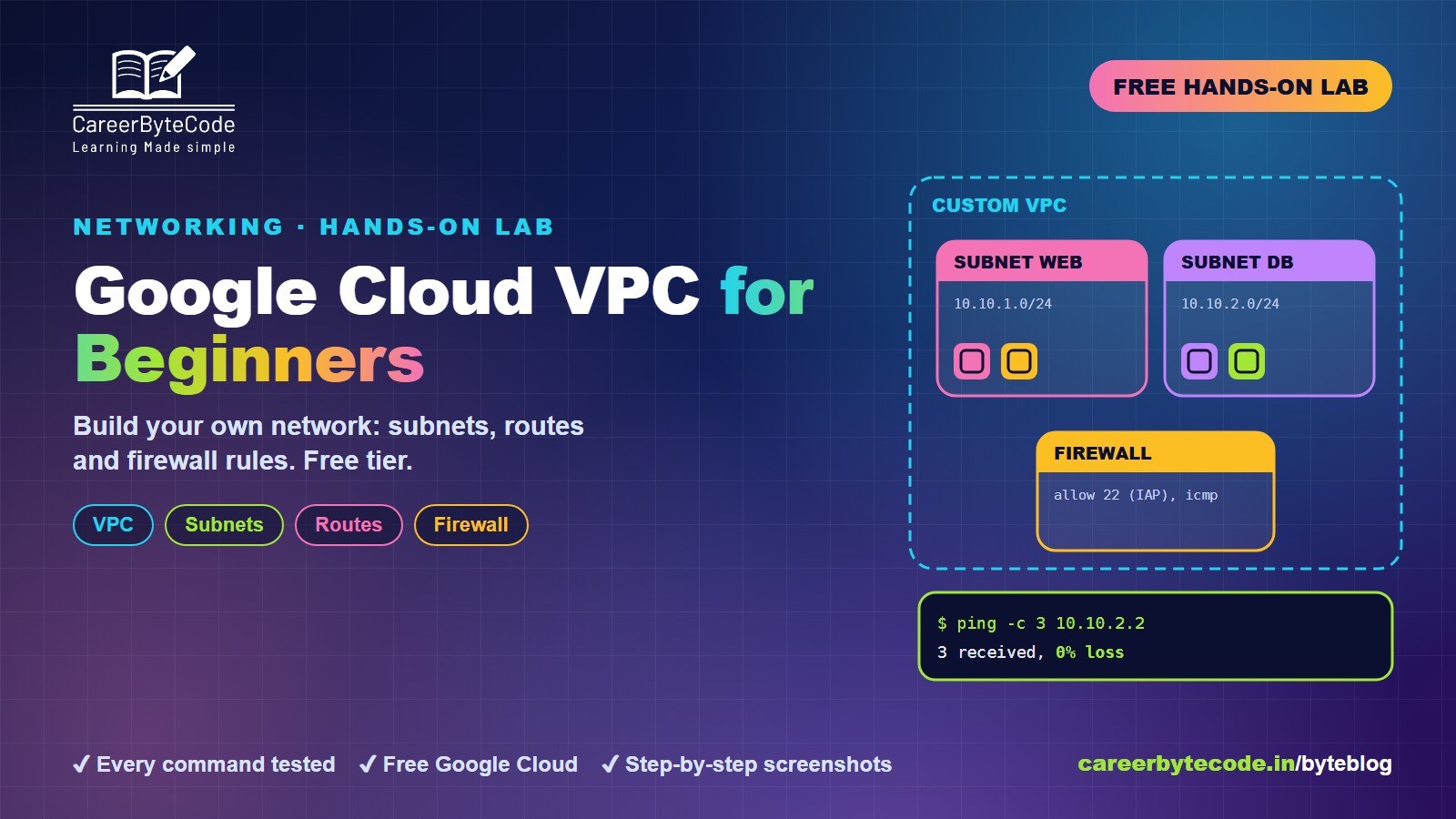 CareerByteCode Team
Google Cloud VPC for Beginners: Subnets, Routes and Firewalls
What you build: a custom VPC with two subnets and firewall rules, in your own Google Cloud account. Every step, command and screenshot explained for beginners.
#beginners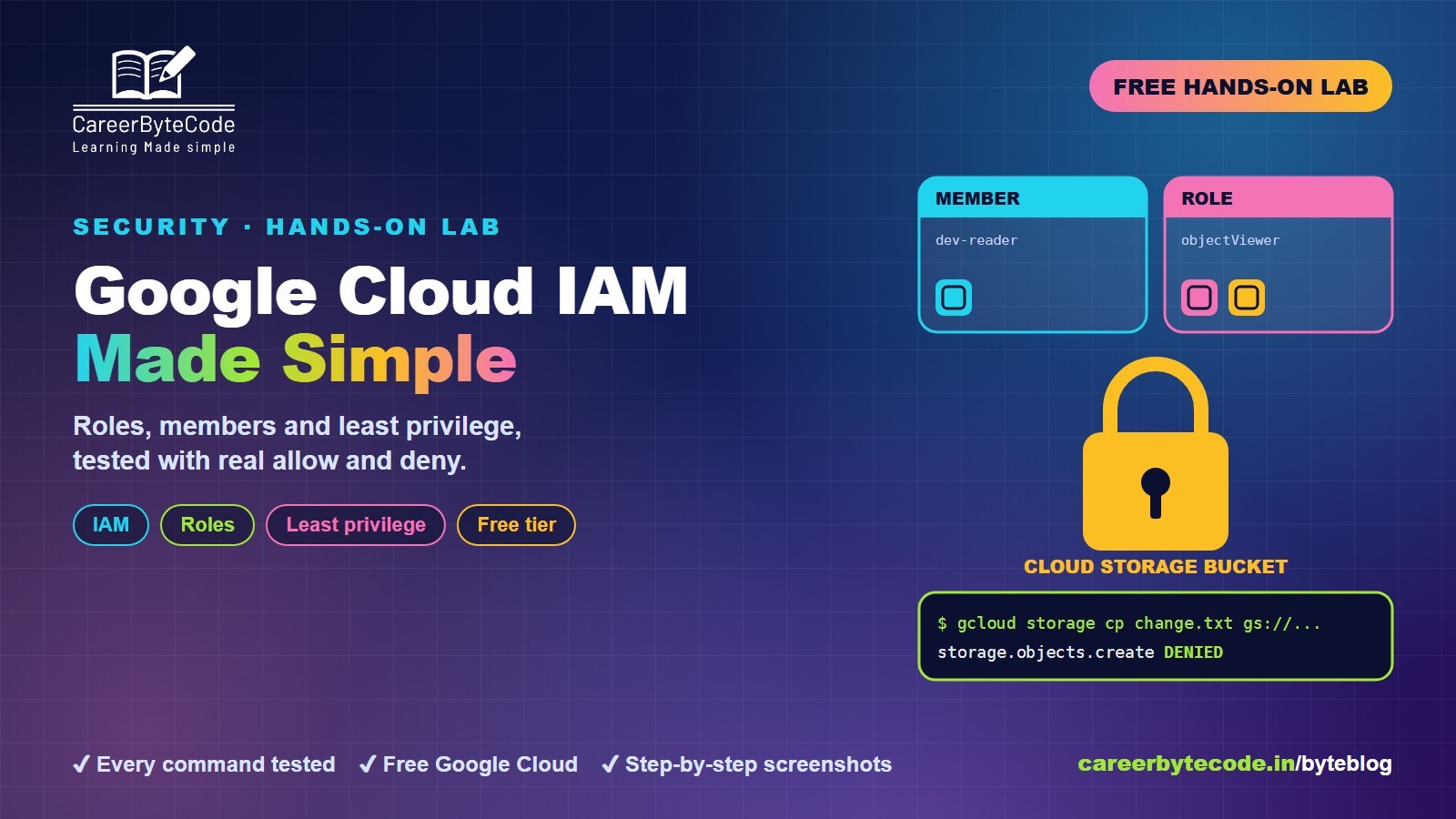 CareerByteCode Team
Google Cloud IAM for Beginners: Roles, Members and Least Privilege
What you build: a project where each person has only what they need, in your own Google Cloud account. Every step, command and screenshot explained for beginners.
#beginners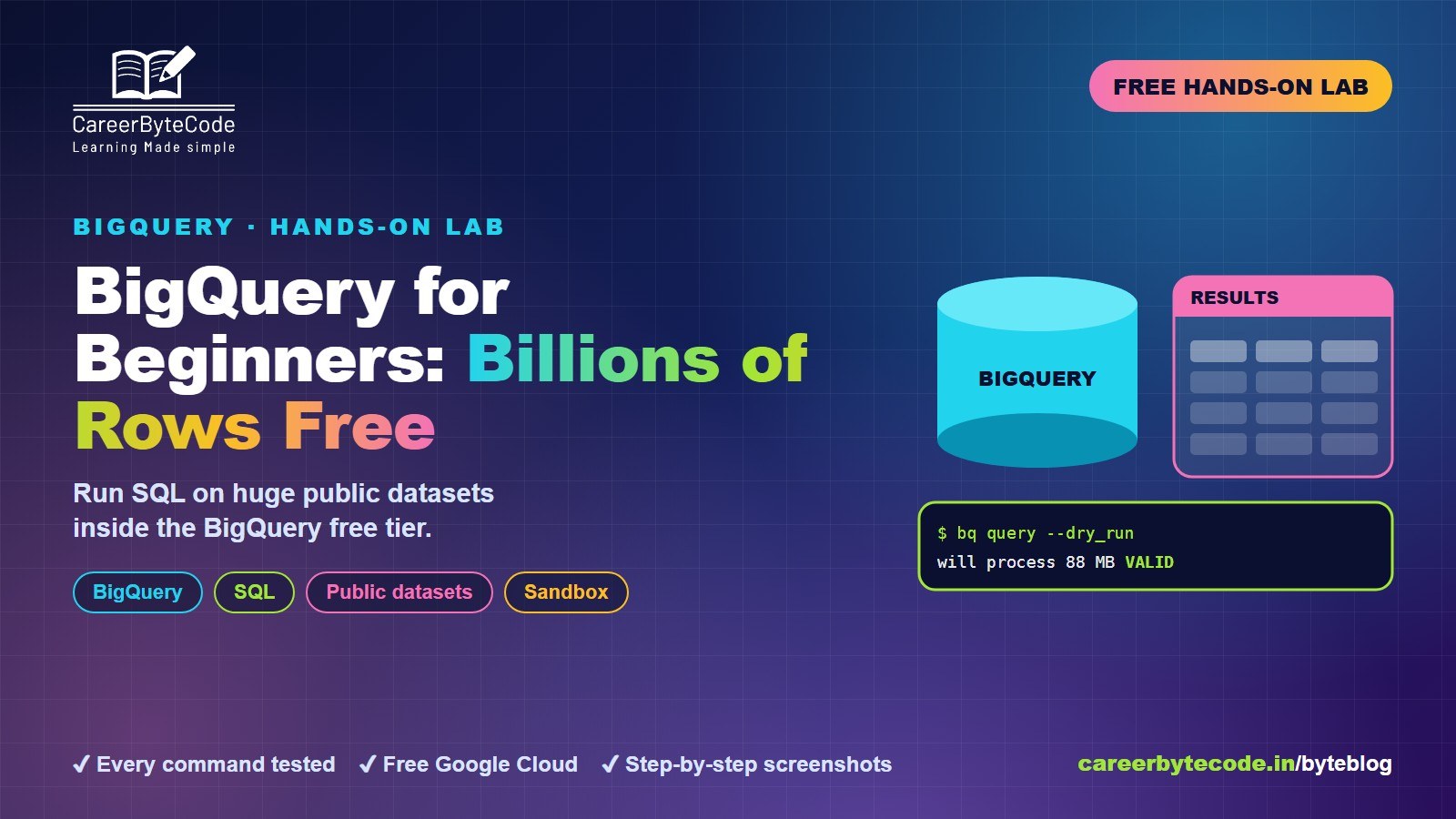 CareerByteCode Team
BigQuery for Beginners: Query Billions of Rows for Free
What you build: SQL on a public dataset with millions of rows, then your own sales table with a view and a daily partition, in your own Google Cloud account. Every step tested.
💬 Comments (0)
Top · NewestSign in to comment